


Back-End Development: How I Work Myself Out of a Job

I’ve mentioned WordPress on calls with prospective clients and felt the mood change. Some get hesitant. A few have told me right away that they won’t use it again.
Usually, there’s a story behind that reaction. They’ve had a WordPress site where changing anything meant digging through custom code, and they had to call their developer every time they wanted to add something. So when I say “WordPress,” what they sometimes hear is, “Am I going to have to learn how to code to update my own website?”
That’s a fair question. And it’s one I think about every time I build a site.
First off, what’s the difference between front-end and back-end development?
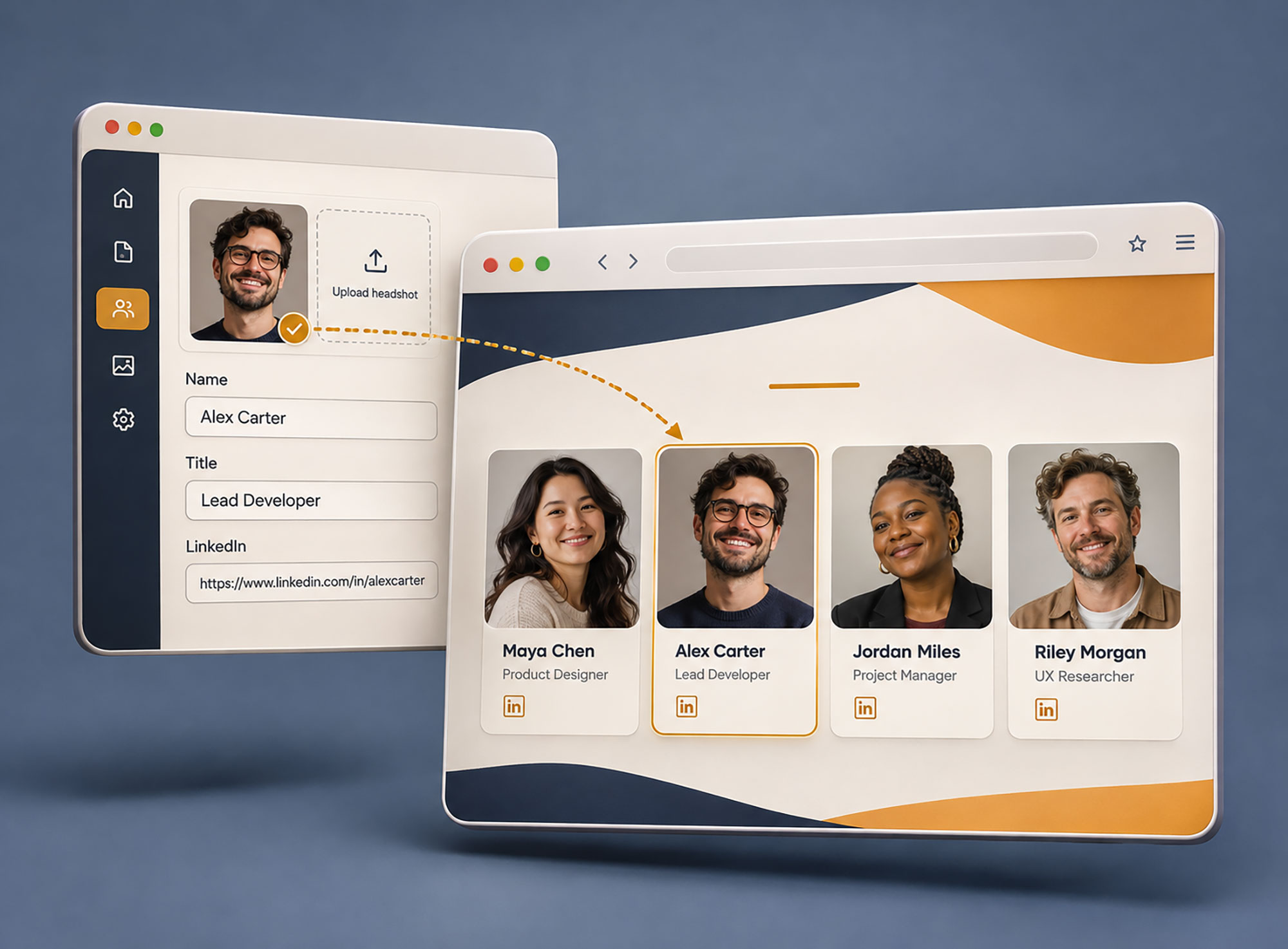
Front-end development is about what visitors see and interact with. For example (which I will use throughout), on a team page, that includes how the headshots are arranged, what happens when you click a LinkedIn icon, and how the layout adjusts on a phone.
Back-end development is about what happens behind the scenes. It includes how information is stored, who can edit it, and how the website retrieves it. The part I’m focusing on here is how I set up the website so your team can manage its content. On that same team page, that means giving you a clear place to upload a headshot, enter a job title, and change the order people appear in.
Both sides matter. I want the team page to look good when someone visits it, and I want it to be easy to update when you hire someone.
What should a simple website update look like?
If you’ve used Squarespace or Wix, you’re probably familiar with drag-and-drop editing. You can click on a piece of content, edit it right there, and move it where you want it. On a custom WordPress site, I can give your team editing screens built around the specific things you update.
- Adding a team member. Go to Team, click Add New, upload a headshot, and enter their name, title, and LinkedIn URL. Then drag them into the order you want them to appear.
- Adding a photo gallery to a blog post. Click Add Images, select several photos at once, and arrange them in the order you want. The gallery handles the layout and navigation arrows. You can publish without touching HTML or CSS.
- Adding a project to a portfolio. Enter the project details, upload photos, and select the industry and services with checkboxes. The site uses that information to build the project page and show it under the right filters in the portfolio.
For the techy folks, this is something I’ve spent years getting good at. Whether I’m using Elementor or building a custom theme with the WordPress block editor, I often use Advanced Custom Fields (ACF) to set up the fields that feed a template, section, or grid. That way, adding a new project is as simple as filling in its details. The template takes care of how it looks.
What I mean when I say “intuitive”
I use the word intuitive a lot on client calls. My go-to example is getting a new iPhone. There’s a little packet of instructions in the box, and I usually set it aside. I turn on the phone, it asks if I want to transfer my data, and it walks me through what to do next.
Think about adding a new contact on that same phone. You tap the plus sign, and there’s a place for the person’s name, phone number, and email. The labels tell you what goes where. I want adding a case study to your website to feel just as straightforward. You find Case Studies, click Add New, and see a place for the title, photos, and project details.
I’ve inherited plenty of websites that look great to visitors but are frustrating to manage. I’ve seen team pages where adding one person meant duplicating an entire row in a page builder, swapping out the photo and text, and fixing the spacing on mobile. If you’re the person responsible for keeping the site current, that’s a lot to figure out just to add a new hire.
The work I’m happy to lose
Building a site this way means I probably lose some hourly work. If your team can add a testimonial, publish a blog post, or update someone’s headshot on its own, those are emails I’ll never get and hours I’ll never bill.
I’m good with that. You should be able to keep your website current without waiting for me to make a simple change.
I always offer a training session when I launch a new site. But my favorite thing to hear after a client logs in for the first time is, “I think I got it. No need!”
More Web Stuff You May Actually Enjoy
No fluff, no buzzwords — just useful reads from real experience.